
Need to update the email on your Business Manager? No problem — just follow these quick steps to get it done in a few minutes.
🔑 Step 1: Log In
-
Head to Facebook Business Manager.
-
Click the ⚙️ Settings icon on the left-hand side.
-
Select Business Settings from the menu.
🧭 Step 2: Find Your Business Info
-
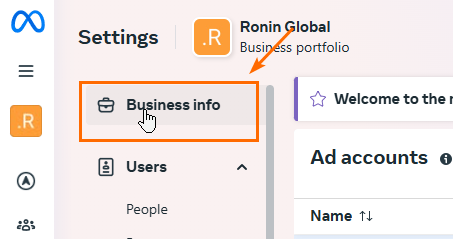
Inside Business Settings, click Business Info (usually near the top).
-
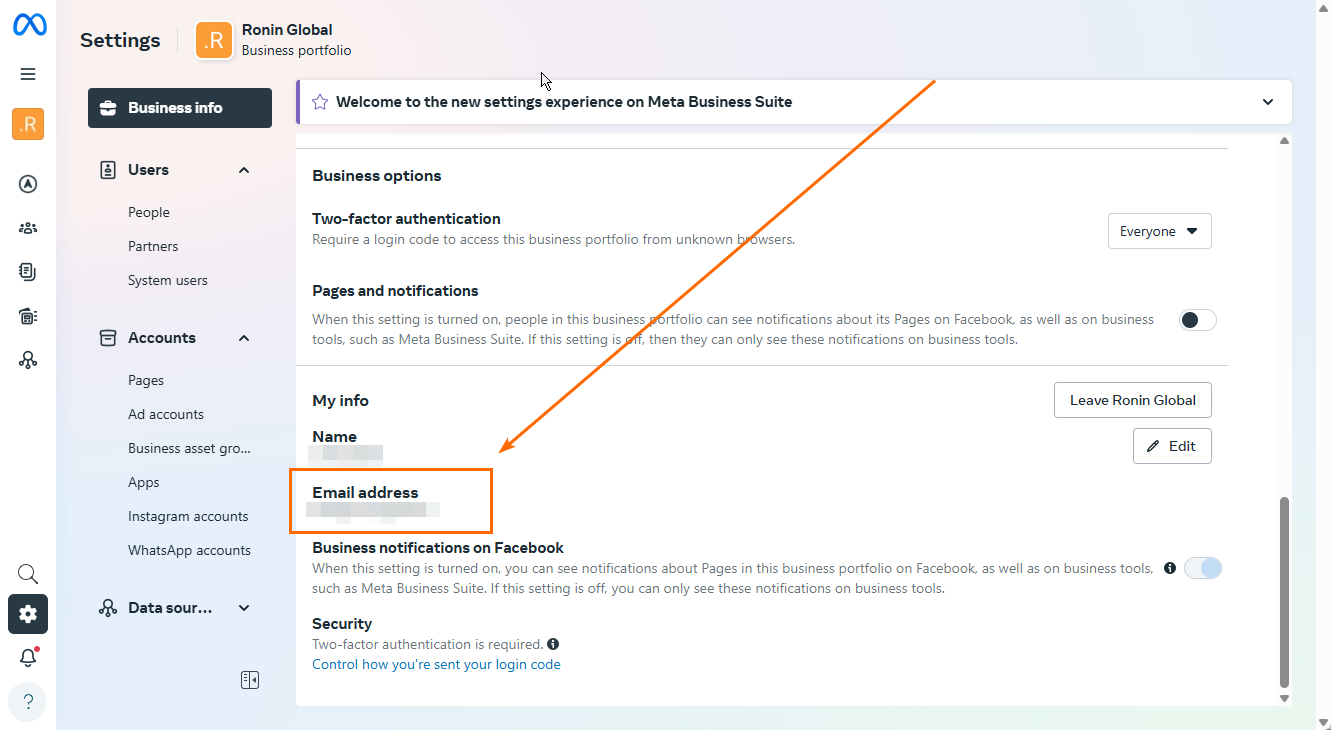
You’ll see your current email listed under Business Details.
✏️ Step 3: Update Your Email
-
Click the Edit button next to your email address.
-
Type in your new email address.
-
Hit Save or Update.
✅ Step 4: Confirm the Change
-
Check your inbox for a confirmation email from Facebook.
-
Click the verification link inside that email.
🔄 Step 5: Refresh and Confirm
-
Go back to Business Settings in Facebook Business Manager.
-
Refresh the page to make sure your new email is showing correctly.
📌 Need-to-Know:
-
Didn’t get the confirmation email? Be sure to check your Spam or Junk folders.
-
Make sure the new email address is working and you have access to it.
Still need help? Message us anytime — we’ve got you.